Quick Answer
The single biggest myth in e-commerce is that you need a multi-thousand-dollar camera setup to sell products online. Today's Android smartphone sensors are powerful enough for serious marketplace photography. If your listings look dark, blurry, or unprofessional, the issue usually is not the phone lens. It is your setup, lighting, camera discipline, and processing workflow.
Get Portrait Drop on Android
Install Portrait Drop from Google Play to preview studio backdrops, take unlimited free test shots, and polish your winning product photo on Android.


Desktop visitor? Scan this with your Android phone.
Why phone product photos fail
Whether you are flipping vintage clothing on eBay, launching a direct-to-consumer brand on Shopify, or selling handmade jewelry on Etsy, your Android phone can become a professional photography studio. The difference is process. A casual snapshot is built for memories. A product image is built for trust, clarity, search-feed clicks, and conversion. That means your camera settings, lighting direction, composition, and finishing workflow all need to work together before the image ever reaches a listing page.
Portrait Drop is not positioned as a generic upload-and-clean AI editor. It is a real-time mobile product photography workflow for Android sellers who want seller-ready images as they shoot, Professional Studio Finish, and image-aware selling copy.
Step 1: Optimize your Android camera settings
Before you place an item on a shooting table, override the default point-and-shoot habits that are optimized for casual people photos, not static product images. Product photography needs clarity, stable focus, controlled highlights, and enough detail for background cleanup software to understand the item boundary.
Clean the lens every single time. Your phone collects pocket lint, fingerprint oils, and dust throughout the day. A dirty lens creates a hazy, low-contrast flare that makes product photos look soft and can confuse background removal software. Use a clean microfiber cloth before each shooting session.
Turn off digital zoom. Never pinch-to-zoom on the screen for product listings. Digital zoom crops the image canvas and introduces pixelation and grain. Move the phone closer to the item or switch to your device's dedicated optical telephoto lens, commonly labeled 2x or 3x in the camera app.
Lock exposure and focus. Tap the product on your Android screen and hold for a moment until AE/AF Lock appears. Then slide brightness slightly downward if highlights are blowing out. This keeps shiny packaging, jewelry, white labels, and textured fabric from losing important detail.
Step 2: Master free, diffused lighting
Lighting makes or breaks a product photo. Harsh lighting creates distracting dark shadows, blown-out highlights, inaccurate color, and ugly glare that hides the real texture of the item. Good lighting does not have to be expensive, but it does have to be soft, directional, and repeatable.
Use the window studio method. Place a table perpendicular to a large window during daylight hours. This creates natural side lighting that reveals shape, texture, and depth without flattening the product. It is often better than cheap bulky softboxes because daylight gives the item a more natural commercial look.
Diffuse direct sunlight. If harsh sun is hitting the product directly, hang a thin white shower curtain, white bedsheet, or translucent baking paper over the window. That transforms hard rays into a soft lightbox effect and reduces aggressive glare on plastic, glass, metal, and glossy packaging.
Say no to built-in flash. Your phone's LED flash is a tiny local blast of light. It flattens products, distorts colors, creates hard reflection points, and makes the image feel like a quick snapshot. Turn it off completely for marketplace product photography.
Want this workflow on your Android phone?
Install Portrait Drop to capture product photos, preview backdrops, and prepare seller-ready images.
Step 3: Use composition and angles that drive clicks
When a buyer scrolls through a crowded marketplace search feed, your thumbnail has only a fraction of a second to win attention. Composition helps the buyer understand what the item is, how much space it occupies, and whether it feels trustworthy enough to click.
Use the hero angle for the primary listing image. Position the camera straight-on at a 90-degree angle to the product when shooting shoes, cosmetics, electronics, packaged goods, bottles, or structured accessories. This angle shows the item the way a buyer expects to see it in the real world.
Use flat lays for clothing, kits, and grouped items. Mount or hold the phone parallel to the floor and shoot straight down. This bird's-eye view works well for clothing drops, unboxed subscription kits, stationery sets, product bundles, and curated accessories.
Turn on grid lines in your Android camera settings. Keep the main product centered tightly across the inner grid intersections and leave enough breathing room around the edges. Marketplace thumbnails crop aggressively, so avoid placing important labels, straps, corners, or packaging edges too close to the border.
Step 4: Streamline your studio with Portrait Drop
Capturing a clean raw photo is only half the battle. Historically, sellers had to export the image to a computer, trace the product edge, remove the room background, create fake shadows, save the image, and then write listing text somewhere else. That process slows down every inventory drop.
Portrait Drop compresses this fragmented timeline into a single mobile workflow. Open the app, select a marketplace-compliant backdrop before capture, use the live camera overlay to see how the real product sits against the backdrop, and take unlimited test shots completely for free.
When you push Professional Studio Finish, Portrait Drop executes high-precision edge cleanup and organic shadow grounding. Unlike generic generative AI apps that can warp fabric patterns, packaging, labels, and textures, Portrait Drop is designed to retain your product's physical identity so the listing remains realistic and marketplace-safe.
After the image is finished, the integrated copy engine scans the product capture and helps output product descriptions, tags, hooks, and listing titles. That turns the phone workflow into a full capture-to-listing process instead of another disconnected photo editor.
Pro tips for complex inventory categories
Clothing and apparel need preparation before the shutter. Use an inexpensive steamer to remove fabric creases before shooting. Wrinkles become obvious on clean studio backdrops and can make inventory look unwashed or poorly cared for.
Reflective objects need distance and angle control. If you are shooting jewelry, watches, sunglasses, glass bottles, or polished electronics, your phone reflection may appear in the item. Stand slightly farther back and use the 2x optical lens if available to push your reflection out of the image field.
Small products need scale context. For jewelry, collectibles, small tools, or handmade accessories, include at least one secondary image that shows real-world size. A ring on a hand, a necklace on a stand, or a small object beside packaging helps reduce buyer uncertainty.
Textured products need gentle light. Fabric, leather, wood, ceramics, and handmade items look better when light comes from the side instead of straight on. Side light reveals texture and makes the item feel more tactile in the thumbnail.
Conclusion: professional product photos can come from your pocket
You do not need an enterprise budget to build a stronger e-commerce storefront. You need clean camera habits, soft light, steady framing, realistic product preservation, and a workflow that moves quickly from capture to listing.
By mastering natural lighting, locking your Android exposure settings, using smart composition, and leveraging the pay-as-you-go workflow inside Portrait Drop, you can generate studio-grade product listings directly from your phone.
The goal is not to make your product look fake or overproduced. The goal is to make the real item clear, trustworthy, and easy to buy.
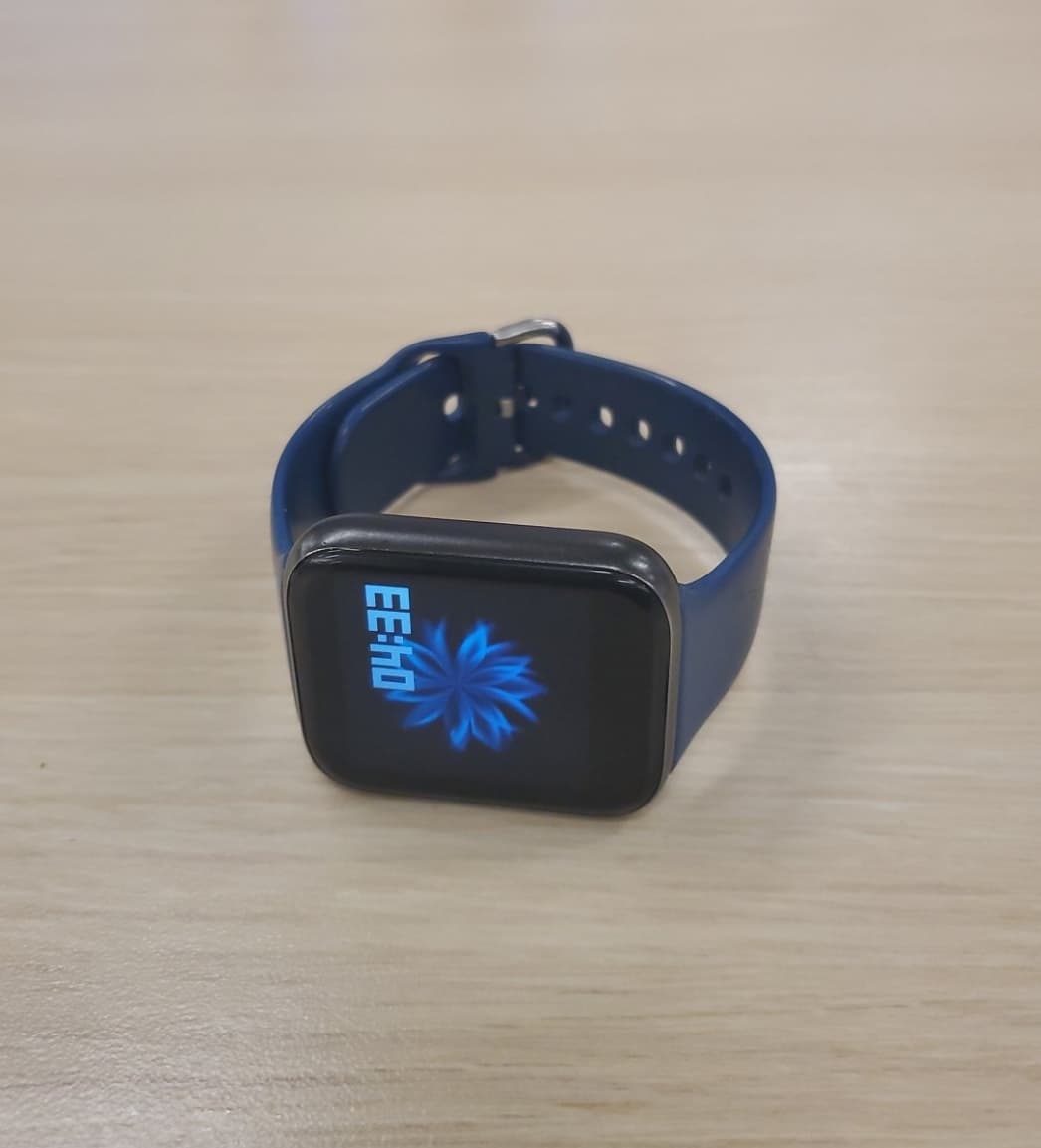
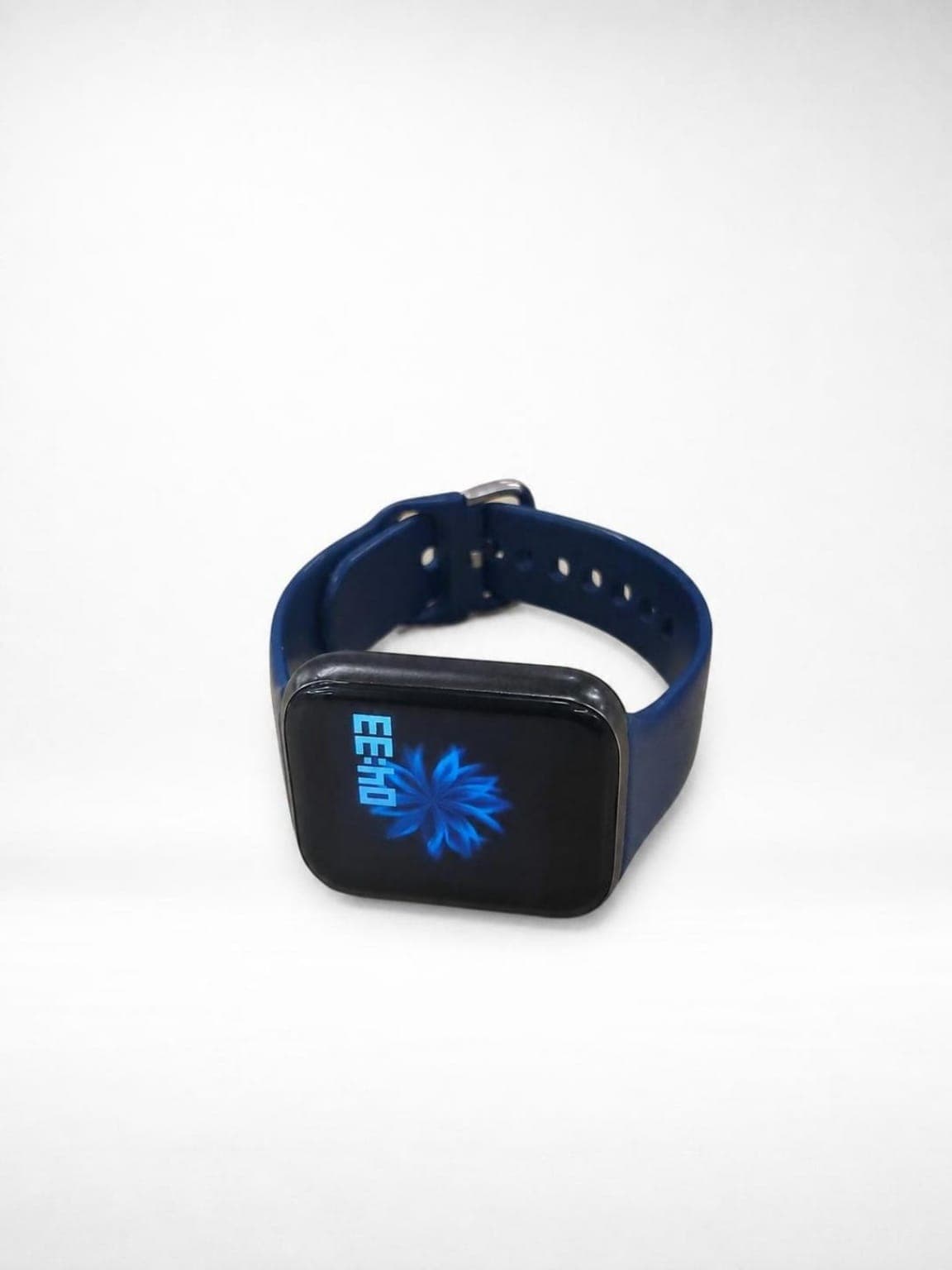
Phone product photo examples
Portrait Drop's 60-second mobile workflow
1
Launch camera preview
2
Select backdrop
3
Capture photos
4
Professional Studio Finish
Portrait Drop keeps the workflow simple: select a backdrop before capture, use live overlays to test framing and angles, take unlimited free test shots, apply Professional Studio Finish only to the image you want to keep, then generate listing copy from the finished product photo.
Professional phone product photo checklist
- Clean the Android camera lens before every shooting session.
- Turn off digital zoom and move closer or use an optical 2x or 3x lens.
- Lock AE/AF focus on the product before taking the shot.
- Use a large window as soft side lighting.
- Diffuse direct sunlight with a thin white curtain or translucent material.
- Keep phone flash turned off.
- Use the hero angle for structured products and flat lays for clothing or kits.
- Turn on grid lines and leave thumbnail-safe breathing room.
- Steam clothing and remove obvious dust, lint, or fingerprints before shooting.
- Use Portrait Drop to preview backdrops before capture and polish only the winning shot.
Frequently asked questions
Can I take professional product photos with only an Android phone?
Yes. Modern Android phones can capture strong product images when the lens is clean, lighting is soft, focus is locked, and the final image is processed through a product-focused workflow like Portrait Drop.
What camera setting matters most for phone product photography?
Locking focus and exposure is one of the most important settings. AE/AF Lock keeps the product sharp and prevents brightness shifts that can blow out labels, fabric texture, or reflective packaging.
Should I use my phone flash for product photos?
No. Built-in phone flash usually creates harsh glare, flat color, and distracting reflections. Use soft window light or diffused daylight instead.
Does every Portrait Drop test shot use credits?
No. Portrait Drop lets sellers take unlimited test shots and preview layouts for free. Credits are used for premium actions such as Professional Studio Finish and marketplace exports.
How does Portrait Drop help after I take the photo?
Portrait Drop helps clean the product edge, apply realistic shadow grounding, preserve the real product identity, and generate listing copy from the finished product image.
Related resources
Product Photography Rules for Etsy Sellers: How to Build a High-Conversion Cohesive Feed on Android
Create cleaner Etsy product photos on Android. Learn shop-feed consistency, handmade item staging, and how Portrait Drop helps prepare listing-ready images.
Product Photography Without a Studio: A Guide for Home-Based Android Resellers
Shoot professional-looking product photos at home without expensive gear. Use natural light, DIY backdrops, and Portrait Drop's Android app workflow.
How to Make Shopify Product Images Look Professional: The Android Store Owner's Blueprint
Improve Shopify product images from an Android phone. Learn cleaner backgrounds, consistent catalog framing, realistic shadows, and the Portrait Drop workflow.
The Best Product Photo Apps for Android Sellers: A Complete Guide to Marketplace-Compliant Photography
Compare Android product photo apps for sellers. See free and paid options for background cleanup, listing captions, subscriptions, and Portrait Drop on Google Play.
Turn your Android phone into a product photography studio
Install Portrait Drop from Google Play to preview studio backdrops, take unlimited free test shots, and polish your winning product photo on Android.
On desktop? Scan with your Android phone.